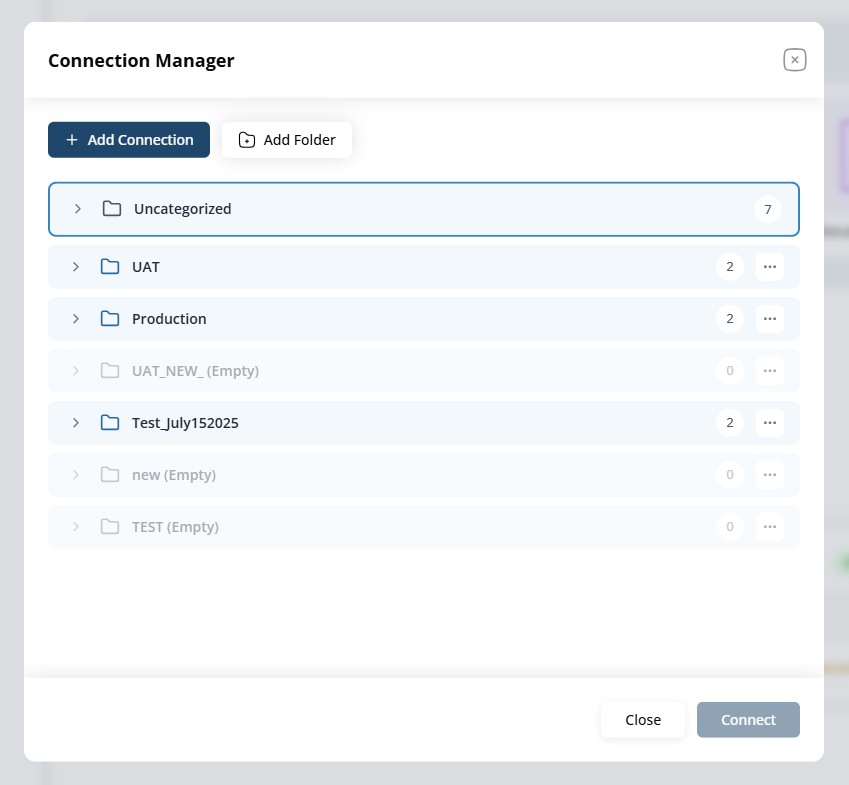
Connections
Section: Connection Manager
The Connection Manager in MongoQUI is designed to efficiently organize, create, edit, and manage all your MongoDB connections. With robust options for folder management, security, and advanced connection parameters, users can manage everything from simple local connections to complex cloud environments with ease.
Connections: Add, Rename, Delete
- Add Connection: Click Add Connection to start configuring a new connection.
- Rename/Delete Connection: Hover over a connection and use the contextual menu to rename or delete.
Adding a New Connection
When adding a connection, the configuration modal has four main tabs: General, Authentication, SSL/TLS, Advanced.
1. General Tab
- Connection Name: Enter a descriptive name (e.g., “Production Cluster”).
- Selected Folder: Assign this connection to a folder (optional but recommended).
- Storage Location: Choose between Cloud Storage or Local Storage for storing connection metadata.
- Connection Type: Select from:
- Standalone
- Replica Set
- Sharded Cluster
- DNS Seed List
- Hosts: Add host(s) (e.g., localhost, prod-db.mongo.com).
- Port: Enter port number (default for MongoDB is 27017).
- Connection String: Auto-generated based on host/port/type, or you can paste/import a connection string directly.
- Import from URL: Optionally, you can paste a MongoDB connection URI for quick setup.
2. Authentication Tab
- Authentication Method:
- SCRAM-SHA-1
- SCRAM-SHA-256
- X.509
- LDAP (GSSAPI)
- Authentication Database: Set the database used for authentication (default: admin).
- Username/Password: Enter credentials for the selected method.
- Remember Credentials: Toggle to save credentials securely (optional).
3. SSL/TLS Tab
- Enable SSL/TLS: Toggle to enable or disable SSL/TLS for this connection.
- Protocol Version: Choose between TLS 1.0, 1.1, 1.2, or 1.3.
- Certificates: (Optional, if required by your MongoDB setup)
- CA Certificate
- Client Certificate
- Client Key
- Certificate Authority
- Certificate Key Passphrase
- Allow Invalid Certificates: Toggle if using self-signed or dev certificates.
- Allow Invalid Hostnames: Useful in dev/test environments.
- Validation Mode: Set to Required, Optional, or None.
4. Advanced Tab
Fine-tune advanced MongoDB driver options for optimal performance and reliability.
- Read Preferences: Choose read preference:
- Primary
- PrimaryPreferred
- Secondary
- SecondaryPreferred
- Nearest
- Read-Only
- Write Concern: Set level (0, 1, majority, all) and write concern timeout (ms).
- Journal Mode: Enable/disable journaling for write durability.
- Connection Pooling:
- Max Pool Size
- Min Pool Size
- Max Idle Time
- Timeouts:
- Connect Timeout
- Socket Timeout
- Server Selection Timeout
- Heartbeat Frequency
- Local Threshold
- Retryable Writes/Reads: Enable/disable automatic retry of failed operations.
- Compression: Choose compression type(s) (zlib, snappy, zstd).
Testing & Saving the Connection
- Test Connection: Click Test Connection to check your parameters. The system will attempt to connect to the MongoDB instance and return success or any connection errors for troubleshooting.
- Create Connection: Once validated, click Create Connection to save.
- Edit Connection: Click Edit Connection on any saved connection to adjust parameters.
- Share Connection: Click Share Connection to securely share connection access with team members (with RBAC controls).
Other Actions
- Copy Connection String: Copy the auto-generated connection string for use in other tools or scripts.
- Delete Connection: Safely remove a connection (with confirmation).
- Move Connection: Reassign connections between folders for organization.
Example Workflow
- Create a folder called “Production”.
- Add Connection, name it “Prod Cluster”, assign it to “Production” folder.
- Fill out General, Authentication, SSL/TLS, and Advanced tabs as per your cluster setup.
- Test Connection. If successful, click Create Connection.
- Edit or Share the connection as needed.
Best Practices
- Use folders to group connections by environment (e.g., Dev, UAT, Prod) or team.
- Use descriptive connection names for clarity.
- Store credentials securely and enable SSL/TLS for all production databases.
- Test each connection before saving to avoid configuration errors.
- Use advanced options only if you’re familiar with MongoDB driver settings.
MongoQUI Connection Manager empowers teams to handle even the most complex database environments easily and securely, with all configuration options surfaced and accessible in a user-friendly UI.