Collection Data Viewer
Right-click Menus and Operations
1. On Connection
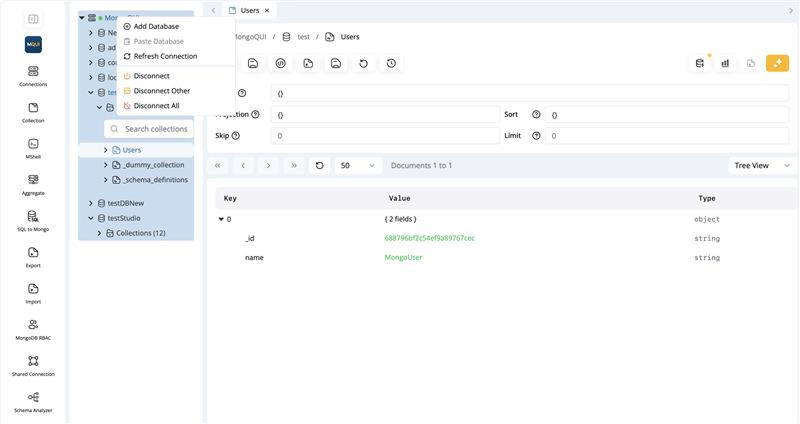
Right-click on a connection for these options:
- Add Database : Create a new database.
- Paste Database : Paste a database copied from elsewhere.
- Refresh Connection : Refresh the connection and metadata.
- Disconnect : Disconnect the current connection.
- Disconnect All : Disconnect all connections.
- Disconnect Other : Disconnect all connections except the selected one.
2. On Database
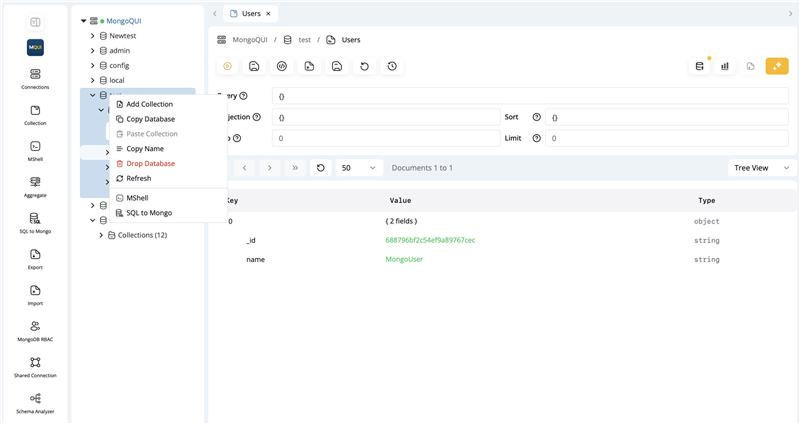
Right-click on a database for these options:
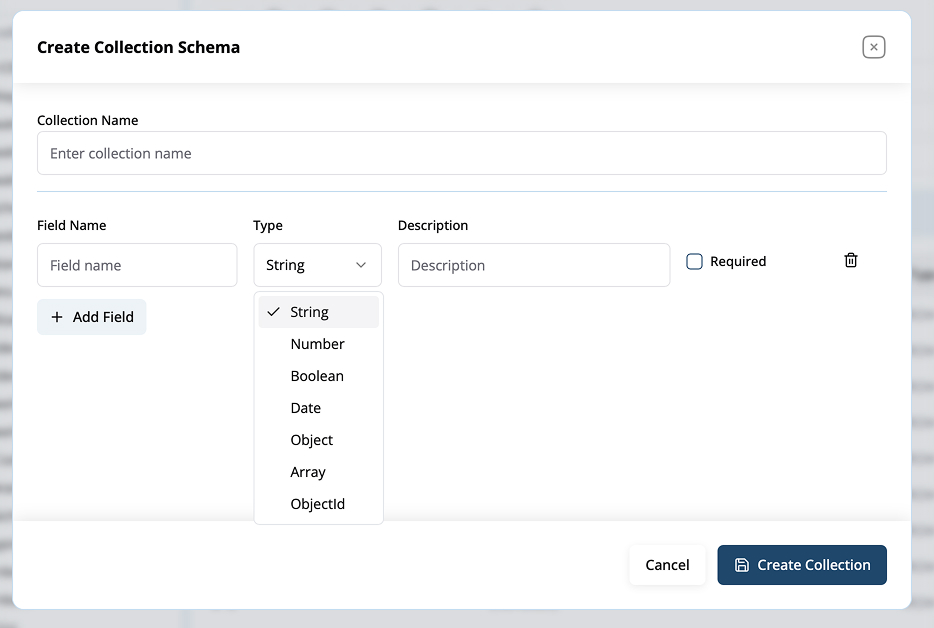
- Add Collection : Create a new collection (schema editor for name and fields).
- Copy Database : Copy the complete database to another connection.
- Paste Collection : Paste a copied collection from another database.
- Copy Name : Copy the database name.
- Drop Database : Delete the database (if permitted).
- Refresh : Refresh the database metadata.
- MShell : Open MShell for this database.
- SQL to Mongo : Open the SQL to Mongo module for this database.
3. On Collection (Hover and Right-click)
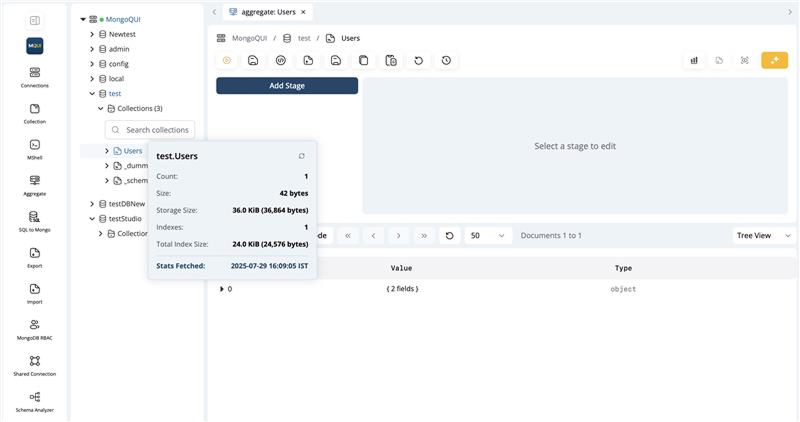
- Hover : Shows collection statistics, including:
- Document count
- Size & storage size
- Indexes & index size
- Last stats fetch time
-
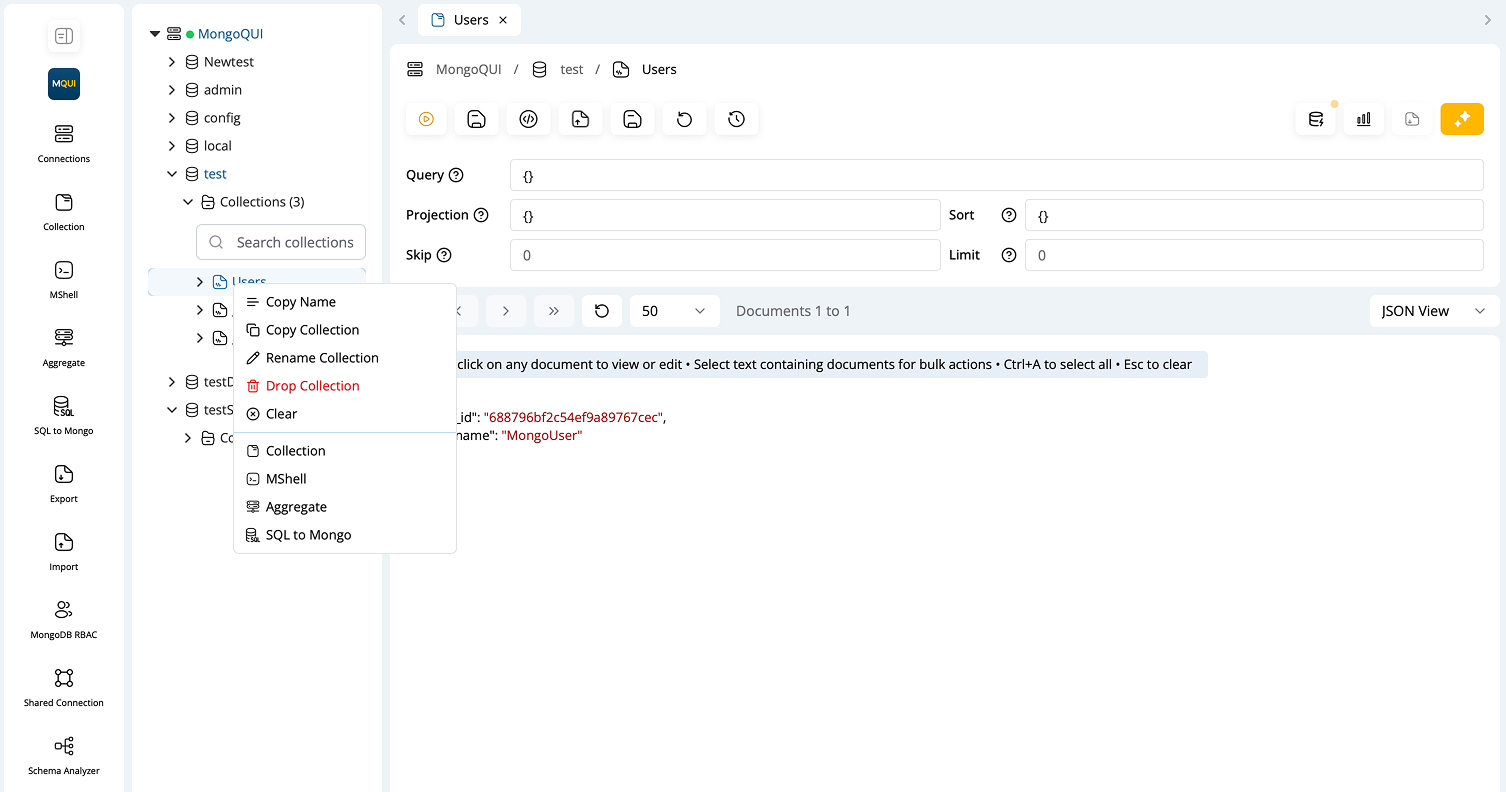
Right-click for actions:
- Copy Name : Copy the collection name.
- Copy Collection : Copy all documents; paste into same/other database.
- Rename Collection
- Drop Collection
- Clear Collection : Remove all documents, keep the collection.
- MShell : Open shell for collection.
- Aggregate : Open aggregation builder.
- SQL to Mongo : Convert SQL to Mongo queries.
Creating and Editing Collections
-
Use the “Add Collection” option to define a schema:
- Set collection name
- Add fields (name, type, description, required flag)
- Types: String, Number, Boolean, Date, Object, Array, ObjectId